enter items FAQS
First sort all your clothing according to gender then size. This will enable you to enter items more quickly.
Enter items on MCM HERE
Discount: choose this box ONLY if you want your items to be sold at half price on Friday. We strongly encourage you to discount.
Donate: choose this box if you would like your item donated to Gallatin Cares, if it does not sell. If you choose not to donate, then you must pick-up your items on Saturday between 12-1pm.
Size: All children’s clothing must have a numerical size
Tagging a non-clothing item: choose ‘not applicable’ or there is a blank field that can also be chosen in the size field. Please do not leave a size in this field when tagging non-clothing items.
Description: please be detailed enough if the tag falls off, we can match it to the item.
Price: use $1 increments
Category: PLEASE SELECT CATEGORY CAREFULLY; We use this to plan our sales floor! After entering each item, click “Add Item”. It will now be saved as inventory.
Transferring Items from Another Season or Sale
Go to “Manage Inventory”.
Select “Items not sold only”; select previous sales from which you wish to transfer items,
Click on “Generate Items List”.
Check all items you wish to transfer
Select the sale you want to move your items TO from the drop-down box.
Click on “Transfer items to consignment.”
Seller number on printed tag must match registered seller number in our sale or you will have to reprint your tags.
pricing items
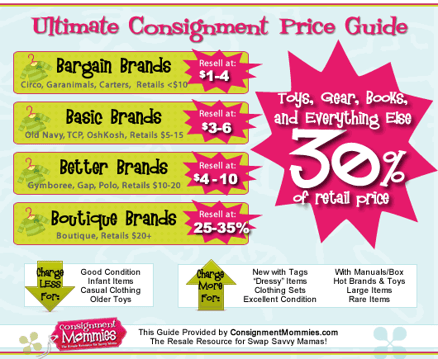
Consignment pricing generally is 30% of retail price. You should price your item to sell. If it is priced too high, then it may get passed up. A good way to ensure your items sell is to mark YES to discount. Many people shop on Friday when selected items are half off!
print tags
Tag Scanning & Verification
-
At check-in, we will test scan your tags.
-
We will confirm that the seller number on each printed tag matches your seller number in our system.
-
If tags do not scan or the seller number does not match, you must reprint and return with corrected tags.
Items with incorrect or unscannable tags cannot be accepted.
Printing Your Tags
-
You may print tags as you go or after entering all items.
-
Select the group of tags you wish to print.
-
Click “Generate Items List.”
-
Select the tags you want to print (any or all).
-
Click “Generate Tags.”
-
No print code is required for our sale.
-
If prompted for one, ensure you are in the correct page (not the main MyConsignmentManager page).
-
Browser & Download Settings
-
Your browser must allow pop-ups for this website or tags will not generate.
-
Click “Download Tags” to save the tags as a PDF file on your computer.
Paper & Printer Requirements
-
Print tags on cardstock (#60–67 weight). White is preferred.
-
Set your printer to NORMAL or DRAFT quality.
Do not use BEST, as it causes barcodes to bleed. -
If using a color printer, select “black ink cartridge only.”
Final Check Before Check-In
-
Carefully inspect all tags for:
-
Fuzziness
-
Waviness
-
Fading
-